

If you work with Google Analytics (GA), Google Tag Manager (GTM), and have lots of clients, you have probably run into this problem: you manage tags with GTM, but the client has the Google Analytics PageView tag placed directly on a subset of site pages. This problem is especially common on sites that span multiple domains or are managed by multiple teams. The best solution would be to manage all GA tags in Tag Manager, but sometimes that’s not feasible.
So, you ask yourself, “should I create a PageView tag in Tag Manager, and define triggers to match the pages that don’t have the tag already?” That would work, but then what happens if the client gets around to placing the tag on those pages? Duplicate page views, that’s what happens. This post describes a way to overcome the missing GA tracking problem without risking duplicate page view tracking.
If you are unfamiliar with the dataLayer and custom event triggers, I recommend that you read this Google dev guide page.
Shoutout to Analytical42.com for inspiring this solution!
How to avoid duplicate page views with Google Tag Manager
Step 1: Check to see if Google Analytics is already loaded
The way to do this is to add a Custom HTML tag to Tag Manager that uses Javascript to check for GA. If it doesn’t find it, it pushes an event to the dataLayer.
Here is what the tag looks like:
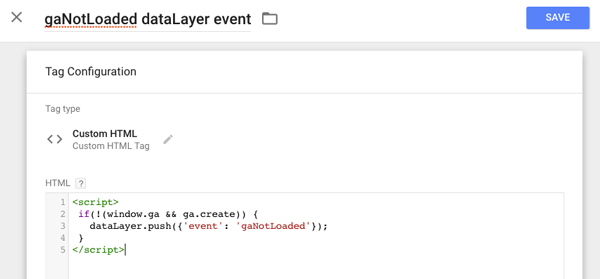
Copy the code for the tag from here:
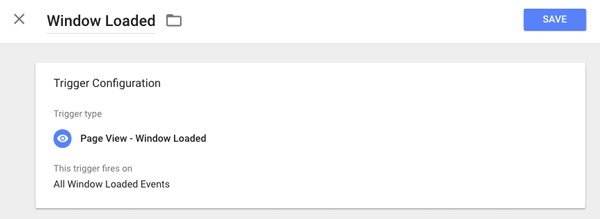
Trigger the tag on the Window Loaded event:
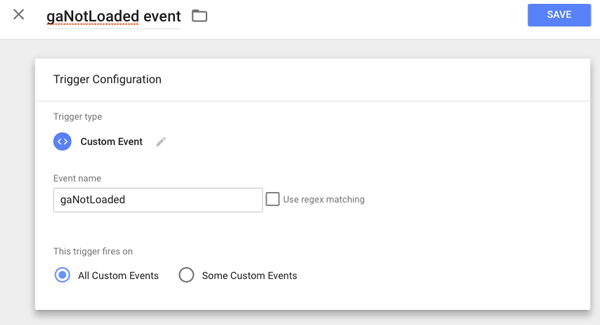
Step 2: Create a trigger for the gaNotLoaded event
Step 3: Make sure the tag and trigger are working as expected
In Tag Manager, select Preview and Debug mode to test out the tag and trigger you created. Open a page that has the GA code, and one that does not. On the one that does not, you should see the gaNotLoaded event appear on the left-hand side of the Preview and Debug pane. You should not see that event on the page that has GA installed. Note that you will see the Custom HTML tag fire in both cases – it always fires, but it only pushes the gaNotLoaded event if GA did not load.
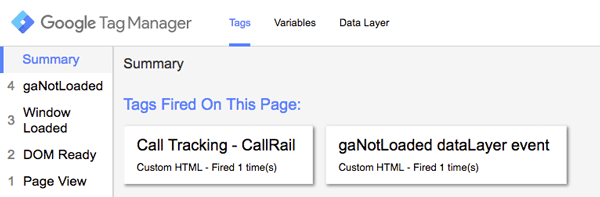
Step 4: Add the Google Analytics PageView tag to Tag Manager, and trigger it on the gaNotLoaded event trigger you just created
Preview again, and Publish if all looks good.
Bam! That’s it!
Be aware that the gaNotLoaded event will not fire if any GA object loads on the page. If you want to check for a specific GA Tracking ID, you will need to add another condition to the Custom HTML Javascript code using the get method of the tracker. See the Google dev guide on Tracker object methods for details on the get method.