
Google Analytics has limited tools for excluding unwanted traffic. It does automatically exclude known bots and spiders, but those are bots that politely announce themselves. Bots that are not so polite are not excluded, and can significantly impact measurement.
I’ve written some blog posts about ways to exclude bot traffic using Google Tag Manager and filters in Data Studio, but the best way I’ve found is to prevent them from visiting your site altogether, which is something you can do with Cloudflare and other CDNs.
Why is a CDN the best place to do Block Bots?
When you use a CDN, it intercepts requests made to your website and proxies content. The latter is useful for improving site performance and security. The former puts a CDN in a position to identify suspicious traffic using signals that are difficult or impossible for you to access. For example, a CDN can see if a range of IP addresses is sending a high volume of requests across many websites, or if a single web client is making requests of your website faster than is humanly possible.
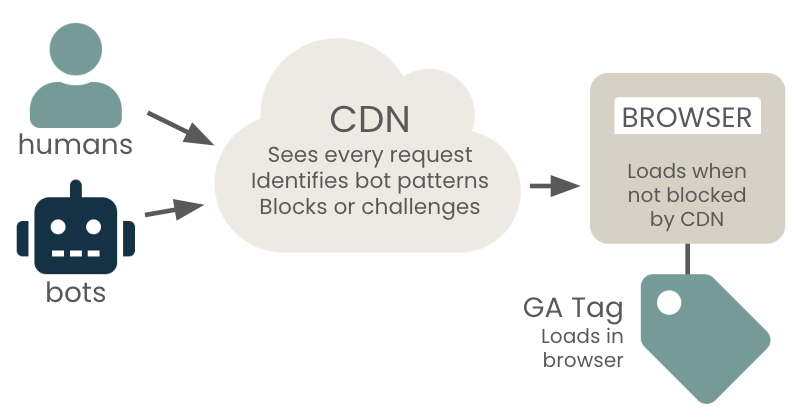
Below I describe how to set up bot filtering in Cloudflare, but similar functionality is available in Akamai and other CDNs.
Enabling Super Bot Fight Mode in Cloudflare
Cloudflare’s options for bot filtering are:
- Bot Fight mode – this is available in the free version of Cloudflare.
- Super Bot fight mode – this is available with Pro and Business Cloudflare subscriptions and is what I describe in this article. If you are not using a CDN, Cloudflare Pro is a great option at $20/month.
- Bot Management for Enterprise – a more sophisticated and expensive option, beyond the scope of this article.
Steps to set up Super Bot Fight Mode in Cloudflare Pro/Business
- Log in to Cloudflare
- Click on your domain
- Navigate to: Security → Settings → search for ‘Super Bot fight mode’.
- Enable Super Bot fight mode. As of this writing (9/2026), the documentation indicates to toggle this feature on, but there is no toggle. Instead, click the gear icon on the right of the panel, and change the ‘Definitely automated traffic’ setting to ‘Managed Challenge’ or ‘Block’. If one of those is already enabled, then you are already using Super Bot fight mode. The Managed Challenge option will present a challenge popup to a bot visitor – few bots will interact with the challenge, so this effectively blocks bots, but allows a human to visit your site if they are inadvertently identified as a bot. I recommend starting with this option.
Make sure to also click ‘Apply’. - Make sure ‘Verified bots’ is toggled on. If this setting is off, search engine crawlers and other “friendly” bots can’t index your site, which means no one will be able to find you on Google and elsewhere. This is the complete list of bots that are ‘verified’ by Cloudflare.
- Regarding other settings, I recommend the following – but if you are not sure about any, do your own research or ask a technology person that knows your site to weigh in:
- JavaScript Detections: on
- Optimize for WordPress: on if you use WordPress
- Static resource protection: off
- Double-check that your ‘Definitely automated traffic’ setting was applied. Click ‘Done’.
Cloudflare is now blocking bots from visiting your site! Some will still get through, but we saw a significant reduction in suspicious traffic when we enabled it on twooctobers.com, and significant bot spikes stopped altogether. The next thing you’ll want to do is to configure a skip rule to allow specific, non-verified bots to crawl your site.
Adding Skip Rules
The main thing to watch out for with bot blocking is that there are some bots you want visiting your site that are not on Cloudflare’s verified list. Configuring a skip rule in Cloudflare lets a bot bypass one or more security features (like Super Bot fight mode) when a condition is met. (Cloudflare Docs).
There are three bots I recommend adding skip rules for:
- PerplexityBot and Perplexity-User – these are used by Perplexity for AI model training and augmenting results.
- Bytespider – this one is used by TikTok to enhance search functionality and content recommendations.
I also recommend checking with your technology team and/or web dev agency to see if any other bots should be allowed. Common examples are tools used for uptime monitoring and search engine optimization.
Steps to add a skip rule
- Go to Security > Security Rules
- Click ‘Create rule’, then ‘Custom rule’
- Give your rule a name, e.g. ‘Bot skip rules’
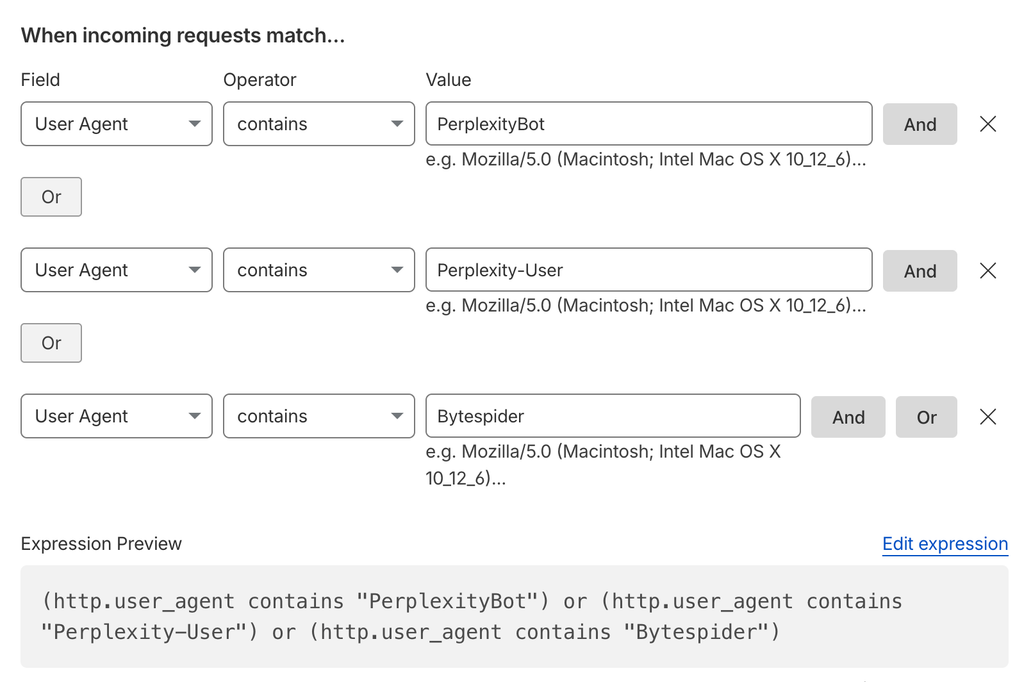
- Set ‘When incoming requests match’ to:
- User Agent contains PerplexityBot
- Or User Agent contains Perplexity-User
- Or User Agent contains Bytespider
- Set ‘Then take action’ to ‘Skip’
- Select ‘All Super Bot Fight Mode Rules’ under WAF components to skip. If you have other rules enabled, you may want to skip those too, but you’ll want to verify with IT before doing so.And under ‘WAF components to skip’ select ‘All Super Bot Fight Mode Rules’ – if you have other rules in place, you’ll want to evaluate whether to check other options.
- Leave ‘Select order’ as is
- Set ‘Status’ to Active
- Click Deploy
Whitelisting IPs
If your developers or SEOs need to be able to crawl the site with a tool (Screaming Frog, for example), the easiest way to whitelist them is to add a skip rule for their IP address(es). Below is an example of how to add a skip rule to allow certain IPs.
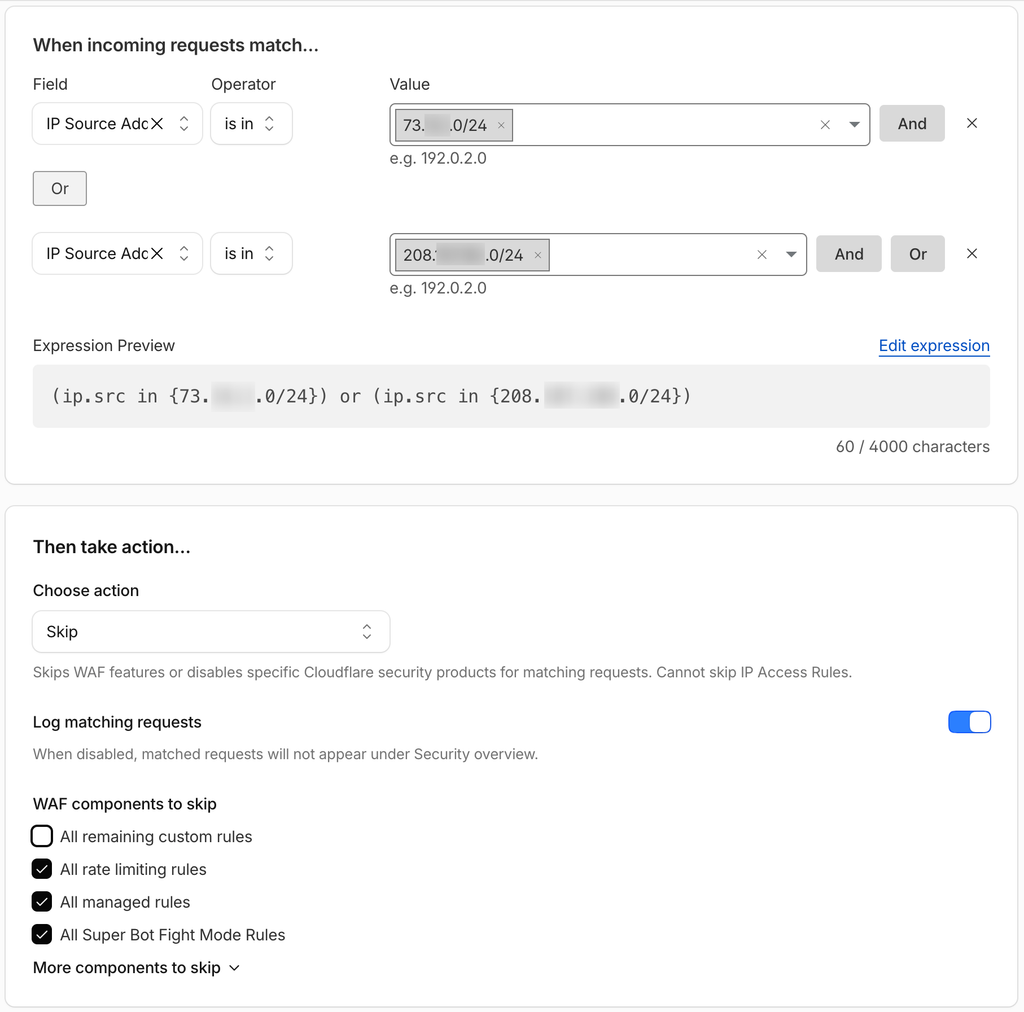
Notice that I chose the operator “is in”, and the value ends with “.0/24”. This syntax matches a range of IP addresses. For example, the pattern 10.1.1.0/24 matches the range 10.1.1.1 – 10.1.1.255. It is fairly common for a router to dynamically assign IP addresses from a pool, so I usually whitelist a range in case a user’s IP address changes from one to another in the pool. Some IPs are fixed, and some pools are larger than 256, but this covers most cases.
Viewing Blocked Bots
To view bot activity in Cloudflare:
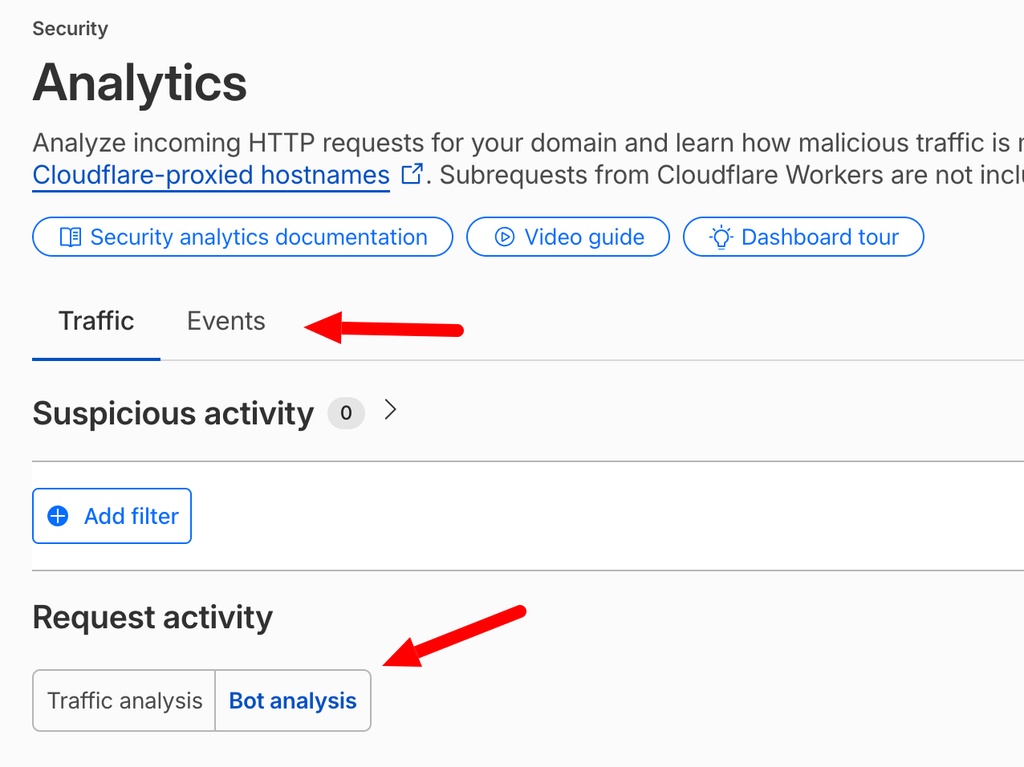
- Go to Security > Analytics
- The default view is Traffic Analysis, this view shows ‘Mitigated by Cloudflare’ alongside ‘Served by Cloudflare’ and ‘Served by Origin’. ‘Mitigated’ means blocked. Other managed and custom rules in Cloudflare can also block traffic, so this isn’t necessarily all due to Super Bot fight mode
- Click on ‘Bot Analysis’ to see more detailed bot reporting. The ‘Traffic’ view provides a high-level summary.
- Click on ‘Events’ to see a timeline of blocked traffic and detail on user agents, countries and various other dimensions.
- Filter this report for ‘Action is in Blocked, Managed Challenged’ to see what user agents are being blocked. This is helpful for identifying if there are any benign bots that you should add to your skip rules.
Links to Resources
- Cloudflare WAF skip rules documentation
- Cloudflare Radar – reporting on global bot traffic
- Cloudflare Security Analytics documentation
- Momentic AI & search engine crawler list – a useful guide
- GA4 “Known bot-traffic exclusion” help doc
Thanks for reading, and please comment or reach out if you have questions or need help setting up bot blocking on your website!